Skip to Content
Timberlogs is in beta. Sign up at app.timberlogs.dev
DashboardFlow Timeline

Flow Timeline

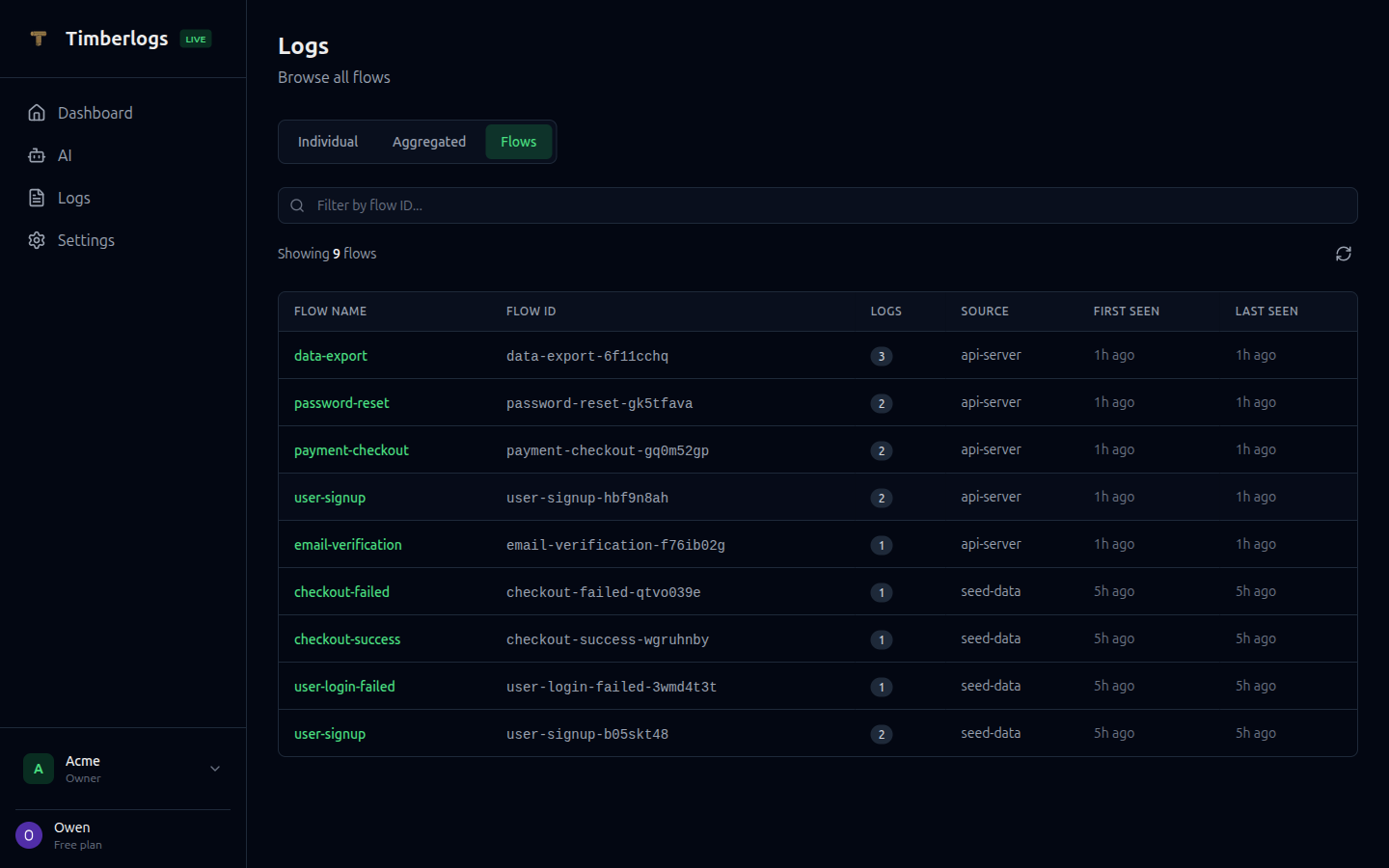
The Flow Timeline view shows related logs grouped together, making it easy to trace multi-step operations.

What is a Flow?

A flow is a series of related logs connected by a flowId. Each log in a flow has:

  • flowId - Unique identifier linking all logs in the flow
  • stepIndex - Sequential position (0, 1, 2, …)

Flows are perfect for tracking:

  • User checkout processes
  • API request lifecycles
  • Background job execution
  • Multi-service transactions

Viewing Flows

From the Logs View

  1. Click any log that has a flow ID
  2. In the detail panel, click the flow ID link
  3. View all logs in that flow

Flow Timeline View

The flow timeline displays:

  • All logs in the flow, ordered by step index
  • Time elapsed between steps
  • Total flow duration
  • Visual timeline showing progress

Flow Details

  • Flow Name - Extracted from flow ID (e.g., checkout from checkout-a1b2c3d4)
  • Flow ID - Full identifier
  • Total Steps - Number of logs in the flow
  • Duration - Time from first to last log
  • Status - Success/Error based on final log level

Timeline

Each step shows:

  • Step Index - Position in sequence (0, 1, 2…)
  • Time - When the step occurred
  • Delta - Time since previous step
  • Level - Log level (color-coded)
  • Message - Log message

Example Flow

checkout-a1b2c3d4 Duration: 2.3s | 4 steps [0] 0ms info "Checkout started" [1] 150ms info "Cart validated" (+150ms) [2] 1.2s info "Payment processed" (+1.05s) [3] 2.3s info "Order confirmed" (+1.1s)

Filtering Flows

By Flow ID

Search for a specific flow:

flowId:checkout-a1b2c3d4

By Flow Name

Search flows by prefix:

flowId:checkout-*

By Status

Filter to failed flows (those ending with an error):

  1. Filter logs to error level
  2. Look for logs with flowId
  3. Click through to see the full flow

Flow Analysis

Identifying Bottlenecks

Look at the time delta between steps:

[0] 0ms "Started" [1] 50ms "Validated" (+50ms) ← Fast [2] 3.5s "Payment done" (+3.45s) ← Slow step! [3] 3.6s "Complete" (+100ms) ← Fast

The payment step took 3.45 seconds - a potential optimization target.

Error Analysis

When a flow ends in error:

[0] info "Checkout started" [1] info "Cart validated" [2] error "Payment failed: Card declined"

The flow stops at step 2 with an error - expand to see the full error details and stack trace.

Missing Steps

If step indices have gaps, the flow may be incomplete:

[0] info "Started" [2] info "Processing" ← Step 1 missing! [3] info "Complete"

Check your log level settings - filtered logs won’t increment the step index, but SDK bugs might.

Best Practices

Naming Flows

Use descriptive flow names:

timber.flow('checkout') // Good timber.flow('user-onboarding') // Good timber.flow('payment-processing') // Good timber.flow('flow1') // Bad

First Log Context

Include key context in the first flow log:

const flow = timber.flow('checkout') flow.info('Checkout started', { userId: user.id, cartItems: cart.items.length, total: cart.total, })

Completion Logging

Always log the outcome:

// Success flow.info('Checkout completed', { orderId: order.id, duration: Date.now() - start, }) // Failure flow.error('Checkout failed', error)

Cross-Service Flows

Pass the flow ID between services:

// API Server const flow = timber.flow('order-fulfillment') await queue.add('fulfill', { orderId, flowId: flow.id, // Pass the flow ID }) // Worker timber.log({ level: 'info', message: 'Processing order', flowId: job.data.flowId, stepIndex: 5, // Continue the sequence })

SDK Support

Create flows using the SDK:

import { createTimberlogs } from 'timberlogs-client' const timber = createTimberlogs({ source: 'my-app', environment: 'production', apiKey: process.env.TIMBER_API_KEY, }) const flow = timber.flow('checkout') flow.info('Started checkout') flow.info('Cart validated') flow.info('Payment processed') flow.info('Order confirmed')

See Flow Tracking in the SDK for complete documentation.

Last updated on